|
Start menu setup options
There are a few items that you
can configure to have your start menu and bottom taskbar configured for
easier navigation. The taskbar is the blue bar which goes from side to
side of the bottom of the screen. First using the mouse right button,
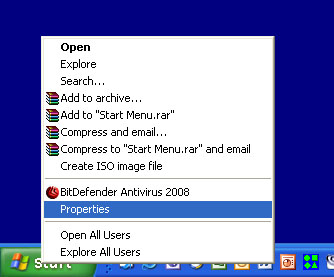
Right click on the Start button in the lower left hand corner of
your screen and select "Properties".
Now click on the "Taskbar"
tab on top.
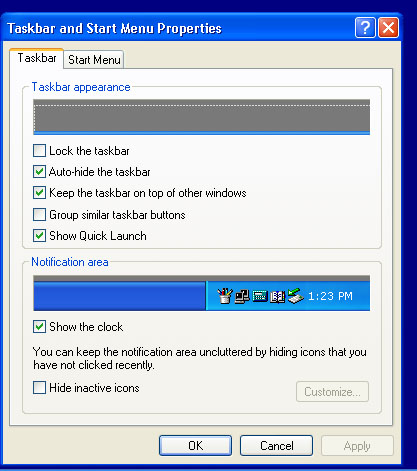
Lock the taskbar
If this box is checked the
taskbar will not be movable. If unchecked, then you can place the mouse
pointer in an empty space on the tack bar, hold down the left mouse button
and drag the task bar to the left, right or top of the screen. I've
seen many people who prefer the task bar to be on the right side of the
screen.
Auto-hide the task bar
When unchecked the taskbar is
visible at all times even when a program such as Word is launched. When
checked then the taskbar will automatically move off screen giving more
visible room for applications. To show the taskbar again simply touch the
mouse pointer to the side of the screen where the taskbar normally is. It
will pop up again until the mouse is moved else where.
Keep the taskbar on top of
other windows
This is pretty much self
explanatory. I would recommend keeping this checked.
Group similar taskbar
buttons
Checking this box allows XP to
rearrange icons in the taskbar so they are grouped according to function. I
keep this unchecked because I like to organize icons the way I think or into
my own groups. Icons can be moved by simply dragging then left and right to
suit your needs.
Show Quick Launch
The quick launch bar will show
on the left side of the taskbar if checked. Mine is shown below. The idea of
this is as follows. Many keep icons on the desktop for launching their
programs such as Word or Excel or a game. Icons on the desktop require a
double click to launch and also take up room. These icons can be dragged
into the quick launch area and rearranged by dragging. The desktop icons can
then be deleted to free up desktop clutter. Quick launce icons require only
a single click to launch a program. As you can see I have all the programs I
uses often in the quick launch bar and not on the desktop.

Show Clock
Simple, this is the clock which
appears in the taskbar in the lower right corner of the screen. Select which
is appropriate for you.
Hide inactive icons
This is a little more difficult
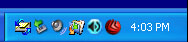
to explain. Looking below you will see an example of some icons that appear
on the right side of the taskbar. These are icons for programs that
automatically run when Windows starts. The more programs that start, the
more icons there are. All of these programs are running but some may be
inactive meaning they are not currently in use. By clicking the Hide
inactive icons will hide those programs which are not in use and only show
those that are. There can also be icons there which are simple short cuts to
common Windows controls such as the audio control panel which is the speaker
icon shown below (3rd from the left). Typically when I configure a PC
I prevent unnecessary programs from starting when Windows starts which
reduces the number of icons visible and also reduces boot up time.
Hope this helped!
|